
Label configuration
Section Purpose:
This documentation describes the label schema editor - a tool for designing the layout and content of labels printed on bags.
Basic Information
Section titled “Basic Information”Labels are printed when creating bags from prescriptions. They contain information about the preparation, the patient, and pharmacy details. Their layout is defined in the label schema editor, which lets you design the label visually or directly in JSON format.
Editor Working Modes
Section titled “Editor Working Modes”The editor provides three tabs:
- Settings - label document settings, including the code type (see below).
- Visual - designing the layout using the drag-and-drop method.
- JSON - editing the schema directly in JSON format (with validation: Valid JSON / Error).
Visual Mode
Section titled “Visual Mode”In visual mode, the label is built hierarchically: sections → rows → cells. You have at your disposal:
- Property panels - for the selected section, row, or cell.
- Field picker - selecting the data fields placed in cells.
- Ingredient list - a dedicated element presenting the preparation composition.
Label Preview
Section titled “Label Preview”The label preview shows its appearance live and highlights the currently selected cell. It can be docked next to the editor or switched to floating (PIP) mode.
Change History and Saving
Section titled “Change History and Saving”- Undo / Redo - shortcuts
Ctrl+Z,Ctrl+Y(orCtrl+Shift+Z). - Save schema - saves the current layout (confirmation: Saved).
Code Type on the Label
Section titled “Code Type on the Label”The code type is set in the Settings tab (document settings section):
- QR Code Required - a two-dimensional QR code, popular and easy to read with smartphones.
- Aztec - a two-dimensional Aztec code, compact and resistant to damage.
- Data Matrix - a two-dimensional Data Matrix code, space-efficient and resistant to distortion.
- Code 39 - a one-dimensional linear code, traditional and universal.
View in Application
Section titled “View in Application”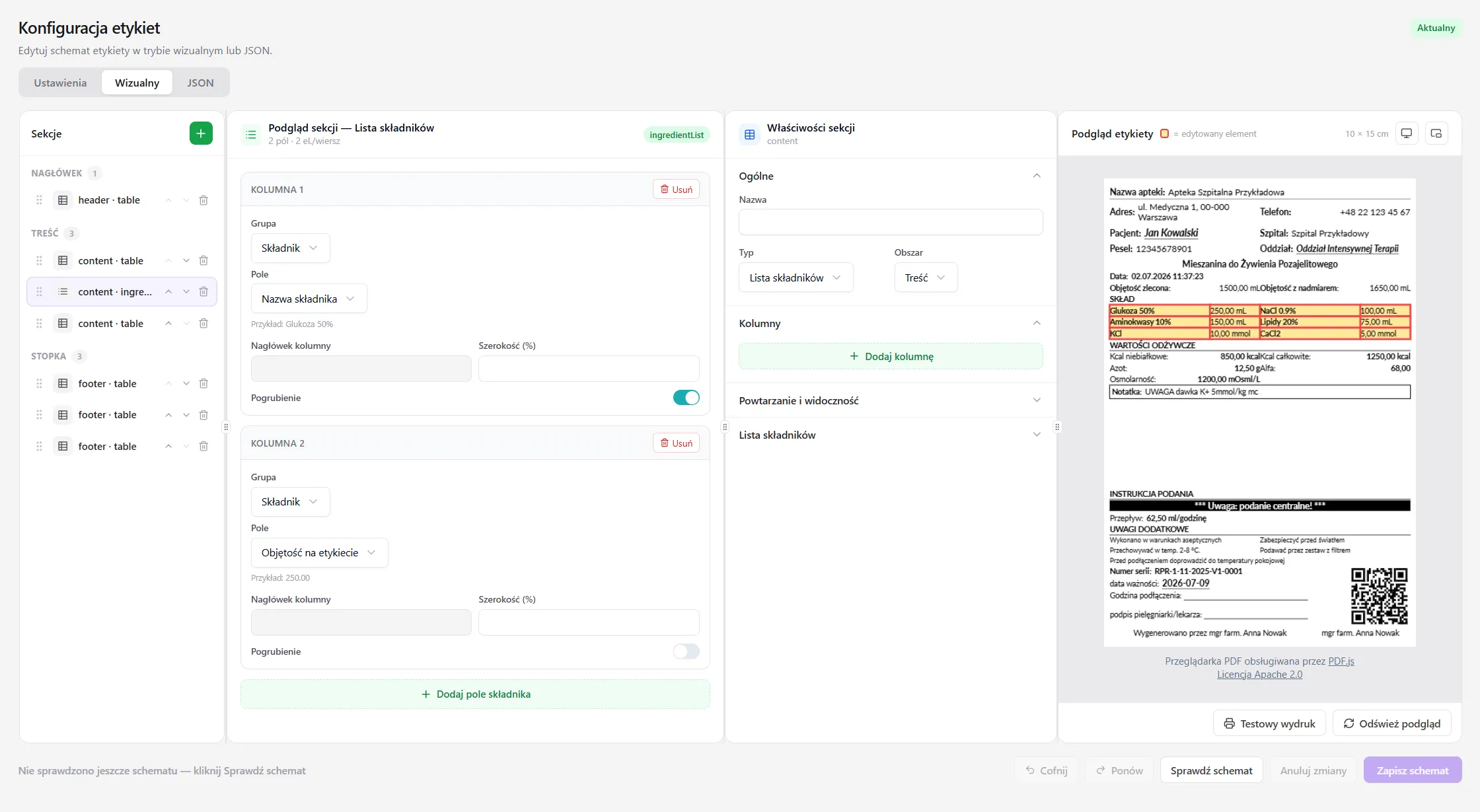
Permissions
Section titled “Permissions”Editing label schemas requires the Edit labels permission (category Labels). Viewing requires the View labels permission. The full catalog is described in the Permission groups section.
Frequently Asked Questions
Section titled “Frequently Asked Questions”What device can I use to read the code on the label?
The type of device depends on the selected code:
- QR Code - smartphone, tablet, or dedicated scanner
- Aztec - 2D scanner or a device supporting the Aztec code
- Data Matrix - 2D scanner or industrial camera
- Code 39 - any traditional barcode scanner
Can I change the code type after I have already generated labels?
Yes. Changing the code type will affect all new labels generated after the settings change. Previously generated labels will contain the old code type.
Does the code on the label contain all the order data?
The code contains the name of the .PAT file along with its checksum, which allows compounders to scan the code and automatically find the corresponding order file in the system. This means data does not have to be entered manually - the compounder scans the code, and the system automatically identifies and loads the order data (patient, drug, dosage, etc.).