
Service Configuration
Section Purpose:
This documentation describes how to manage NATS services in the system - from registering new services, through viewing their statistics, to configuring printers for print services.
Basic Information
Section titled “Basic Information”Services are external agents (e.g. a printing agent) connecting to the system via the NATS message bus. Each service is identified by a slug (identifier), and its connectivity status (Online / Offline) is updated live.
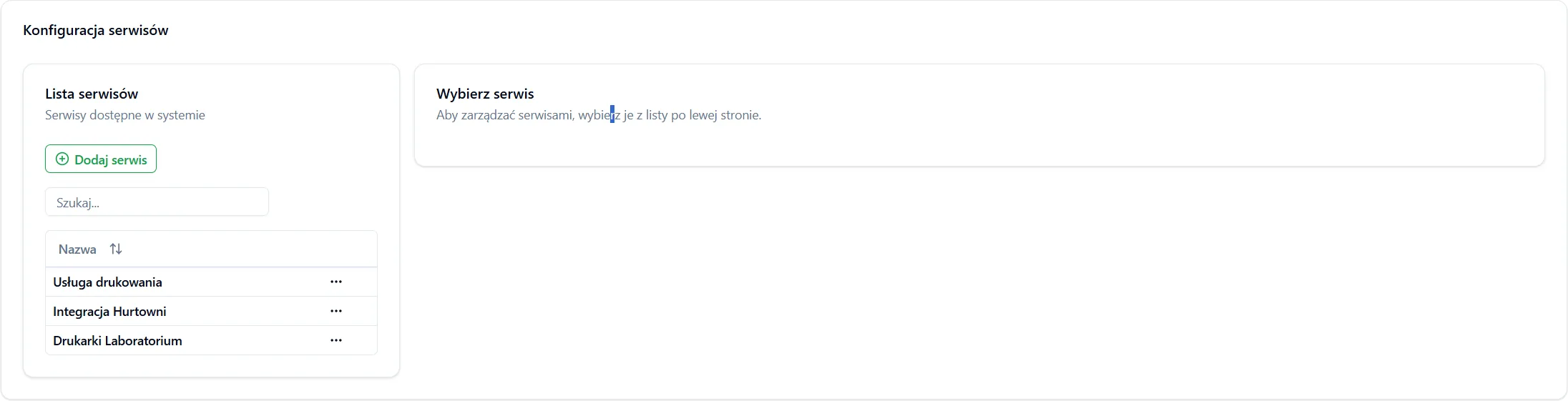
The Configuration → Services view is divided into two parts:
- Service list (on the left) - all registered NATS services.
- Service Management (on the right) - details, statistics, and printers of the selected service.
Service list columns
Section titled “Service list columns”| Column | Description |
|---|---|
| Name | Friendly name of the service. |
| Slug | Service identifier (used in NATS communication). |
| Status | Service connectivity: Online or Offline. |
Creating a New Service
Section titled “Creating a New Service”- Go to the Configuration → Services section.
- Click the Add service button.
- In the Add NATS service dialog, fill in:
- Service name Required - friendly name.
- Identifier (optional) Optional - service slug. Leave empty to generate it automatically.
- Click Add.
Activation data
Section titled “Activation data”After the service is created, a Service created successfully dialog appears with data to copy:
- Service ID (slug) - the service identifier.
- Install token One-time - used to activate the service.
- Activation link - the address at which the service activates.
Service Management
Section titled “Service Management”After selecting a service from the list, a Service Management panel appears on the right with tabs:
- Details - always available.
- Printers - available only when the service is Online.
Details
Section titled “Details”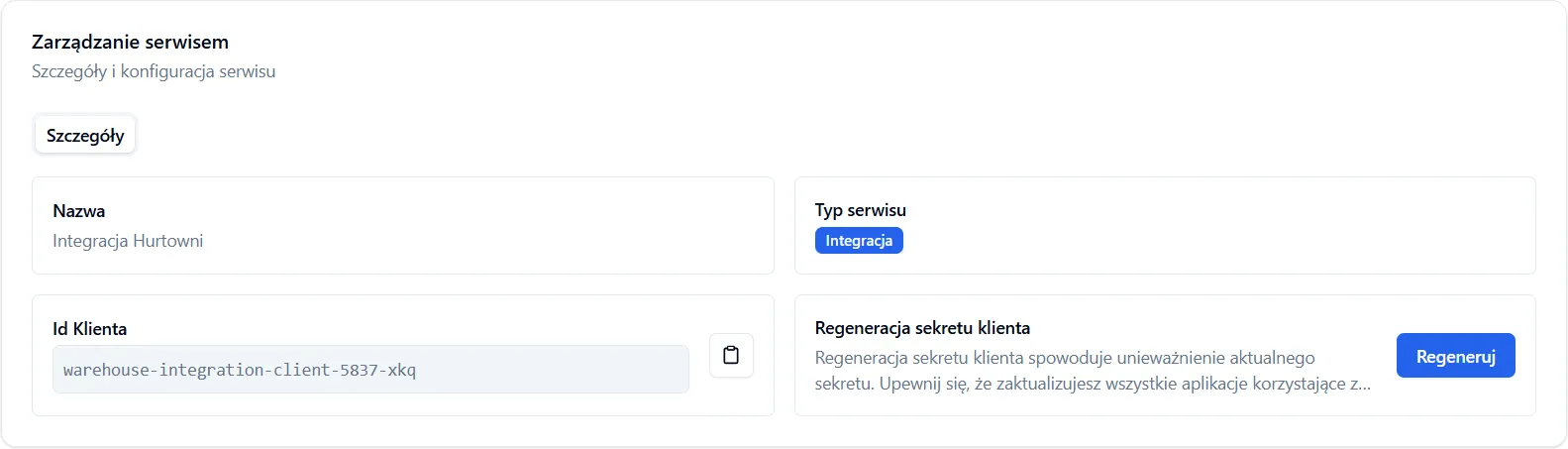
The Details tab presents:
- Name and Slug of the service.
- Status - Online / Offline.
- Version - the version of the connected service (if available).
- NATS statistics - Requests, Errors, Processing time, and the “Uptime since” time.
- Endpoints table - for each endpoint: Name, Subject, Requests, Errors, Processing time, Average time.
- Publish permissions and Subscribe permissions - the NATS subjects the service can publish to and those it subscribes to.
Revoking a service
Section titled “Revoking a service”To revoke a service’s access, use the Revoke action on the service list. After confirmation, the service loses access to NATS.
Printer Management
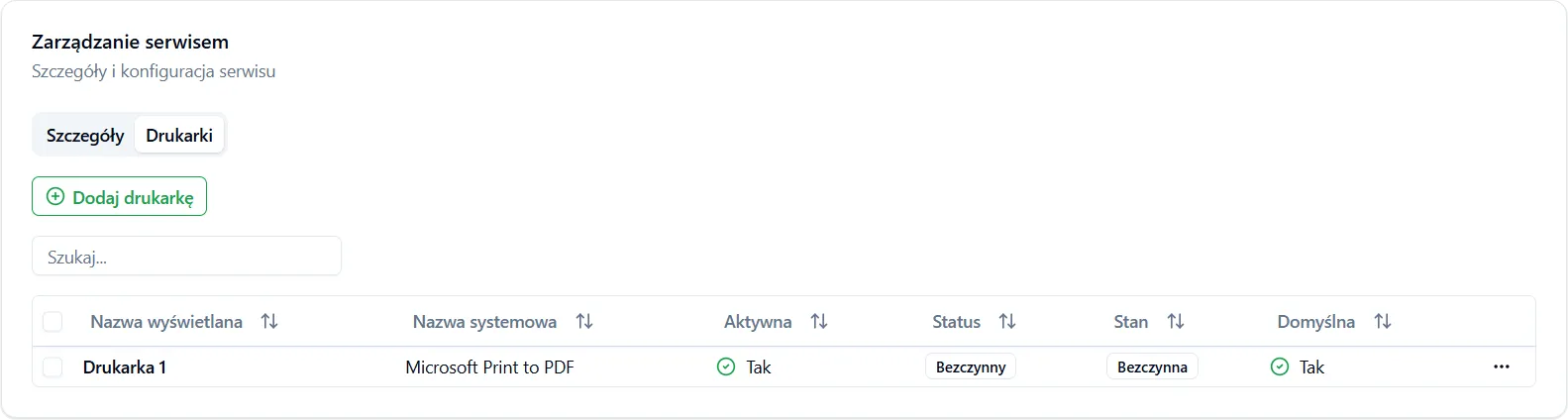
Section titled “Printer Management”The Printers tab is available for a service that is Online (e.g. a printing agent). The printer list contains the columns:
| Column | Description |
|---|---|
| Display name | Name presented in the system. |
| System name | Printer name on the agent. |
| Active | Whether the printer is available (Yes / No). |
| Default | Marking of the default printer. |
Adding a printer
Section titled “Adding a printer”- On the Printers tab, click Add printer.
- Step 1 - Select printer from the list of those available on the agent and click Next.
- Step 2 - Display name - provide the name presented in the system and click Add printer.
Editing a printer
Section titled “Editing a printer”For each printer you can edit:
- Display name - change the name presented in the system.
- Status - the Active / Inactive toggle.
Save changes with the Save button. A printer can also be removed from the service.
Permissions
Section titled “Permissions”Managing services requires permissions from the Services category (create, view, edit, archive) - see Permission groups. Revoking a service and removing printers is covered by the service archival permission.
Frequently Asked Questions
Section titled “Frequently Asked Questions”What should I do if I lose the install token?
The install token is one-time and cannot be recovered. If the service has not yet been activated, revoke it and register a new one to receive a fresh token.
Why can’t I see the Printers tab?
The Printers tab appears only for a service with Online status. If the service is Offline, first make sure the agent is running and connected to NATS.
What does the Online / Offline status mean?
The status reflects the service’s current connectivity to the NATS bus and is updated live. Online means an active connection, Offline - no connectivity.
What happens after a service is revoked?
The service immediately loses access to NATS. All its connections are rejected. To restore operation, a new service must be registered and activated with a fresh token.