
Prescription
Section Purpose:
This documentation describes the prescription in the system - its structure, properties, statuses and available operations. It contains information about creating, editing, managing and browsing prescriptions.
Basic Information
Section titled “Basic Information”Each prescription has the following properties:
-
Prescription number Unique identifier - the number consists of:
- prescription type,
- the number of issued prescriptions,
- date (month-year),
- version.
Format:
RNI-1-11-2025-V1 -
Status - the current status of the prescription (e.g. Issued, Completed, Cancelled).
-
Nutrition - type of nutrition: Immuno, Partial or Complete.
-
OPK - the OPK code of the department in which the prescription was issued.
-
Patient
-
Doctor
Prescription list
Section titled “Prescription list”| Prescription number | Status | Nutrition | OPK | Patient | Doctor |
|---|---|---|---|---|---|
| RNI-1-11-2025-V1 | Issued | Complete | SC | Jan Nowak | Dr. Kowalski |
| RNI-2-11-2025-V1 | Completed | Immuno | SC.SIK | Maria Lewandowska | Dr. Wiśniewski |
| RNI-3-11-2025-V2 | Cancelled | Partial | SC.OCHW | Piotr Zając | Dr. Nowak |
View of the prescription list in the application
Section titled “View of the prescription list in the application”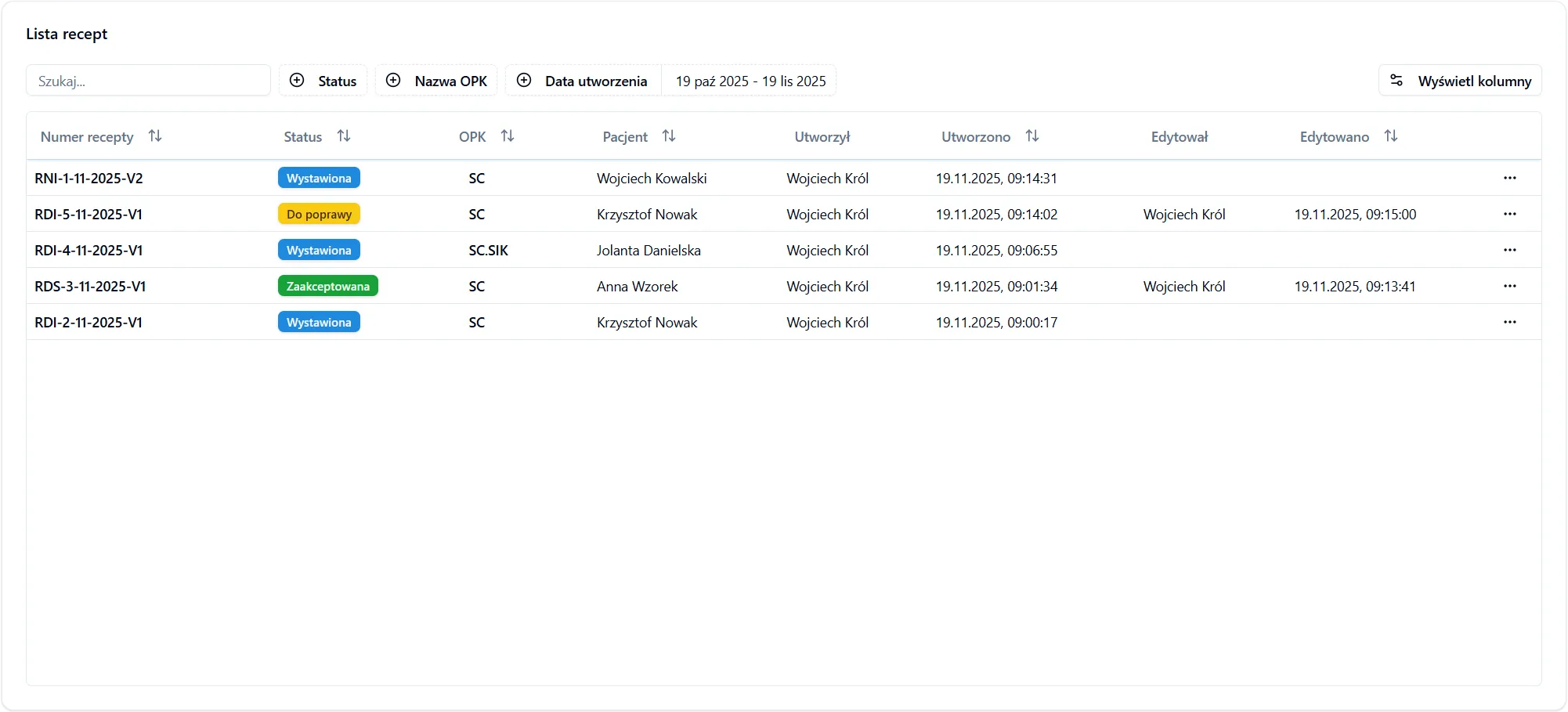
Actions available for a prescription
Section titled “Actions available for a prescription”Depending on the prescription status and the user’s permissions, various operations are available:
- Pharmacist view - allows creating an order from a prescription.
- Display - displays the prescription PDF.
- Download - downloads the prescription PDF.
- Edit - allows navigating to the prescription form view in order to edit its data.
- Clone - allows creating a new prescription based on a selected one, with all data automatically transferred.
- View history - opens a view where previous versions of the prescription are visible.
- Cancel - cancels the prescription.
Additionally, the prescription list can be exported to an Excel file. Users with the appropriate permissions can also revert the status of a prescription to the previous stage.
Edit Lock
Section titled “Edit Lock”Opening a prescription for editing, cloning or in the pharmacist view locks it for other users, so that two people do not modify it simultaneously. Locks are visible on the prescription list live - you can see who is working on a given prescription and how.
Types of locks:
- Prescription editing
- Prescription acceptance
- Issuing another bag
A user with the Force prescription unlock permission can take over a prescription locked by someone else. More about permissions in the Permission groups section.
Frequently Asked Questions
Section titled “Frequently Asked Questions”Can I change the patient on an existing prescription?
No. If you want to change the patient, you must use the Clone function - you will create a new prescription based on the selected one and indicate a different patient. The original prescription remains unchanged.
What is the impact of editing a prescription on its number?
Each edit of a prescription increases its version (e.g. from V1 to V2). The base (sequential) number is inherited from the first version and remains unchanged - only the V version designation increases. The history of all changes is available in the prescription history view.
Why can’t I open a prescription for editing?
The prescription is probably currently locked by another user (editing, acceptance or issuing a bag). Wait until they release the lock, or - if you have the Force prescription unlock permission - take it over.