
Pharmacist view
Section Purpose:
This documentation describes the pharmacist view - a specialized tool intended for pharmacists with the appropriate permissions. It allows verifying prescriptions, creating production orders and managing bags.
Basic Information
Section titled “Basic Information”The pharmacist view is available exclusively to pharmacists and users with the appropriate permissions. It allows:
- Verifying prescriptions before acceptance
- Creating and managing bags
- Reviewing detailed information about ingredients and nutritional values
- Printing labels and orders for production
View contents
Section titled “View contents”The pharmacist view contains three main tabs:
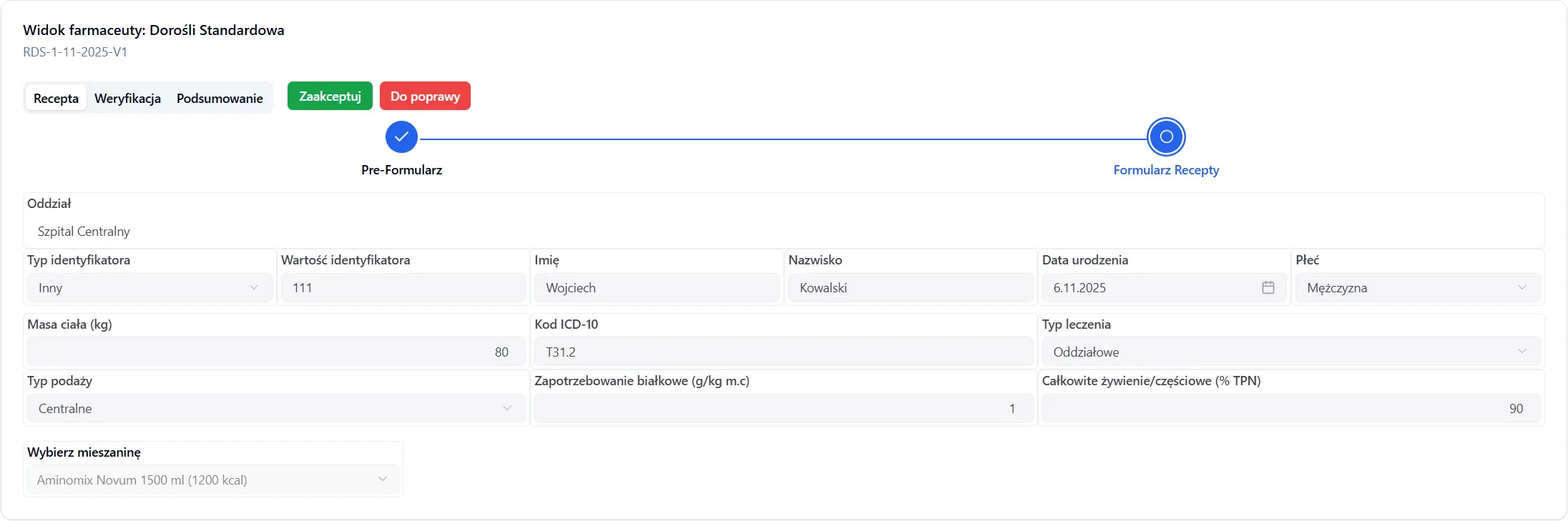
1. Prescription
Section titled “1. Prescription”Displays the standard prescription form of the given type
2. Verification
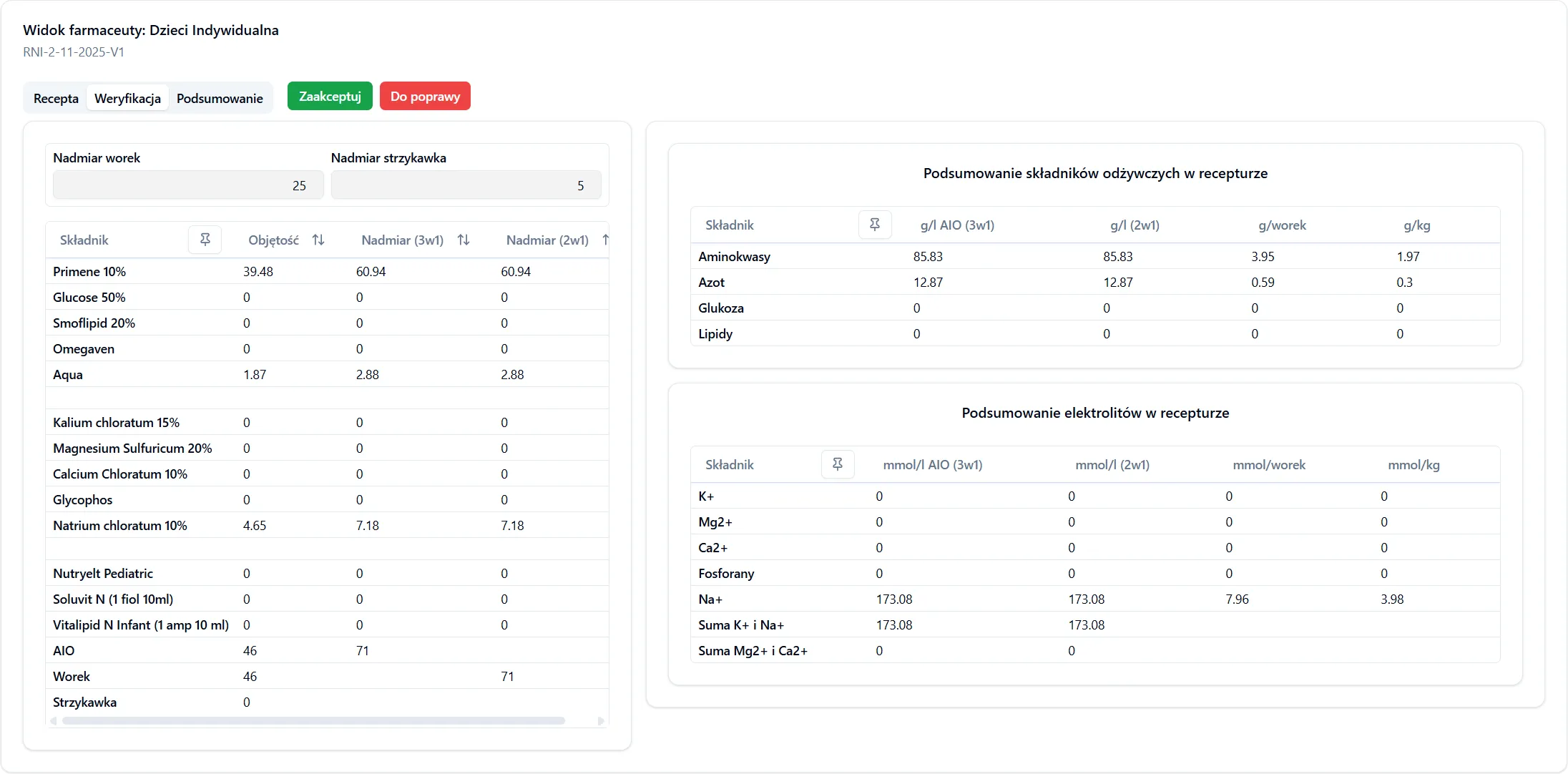
Section titled “2. Verification”The verification tab allows detailed inspection of the formulation. It contains:
-
Overfills - the ability to set volume overfills
-
Ingredient list - an overview of all ingredients with their quantities
-
Nutrient summary - a breakdown of nutritional values in the formulation:
-
Electrolyte summary - an overview of the electrolytes in the composition
3. Summary
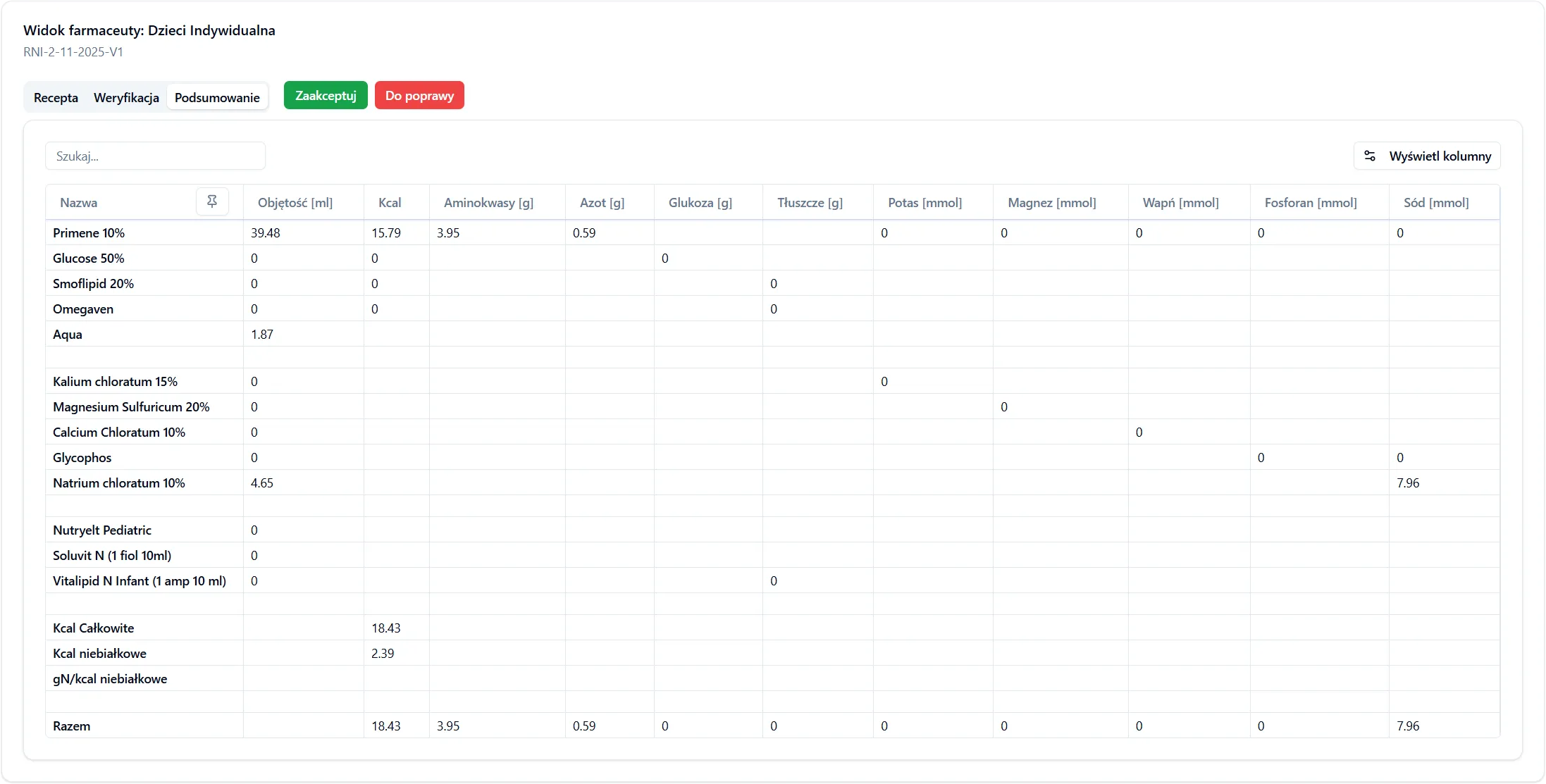
Section titled “3. Summary”The summary view displays a complete breakdown of the formulation:
- The content of each ingredient (e.g. Primene 10%)
- Number of calories (kcal)
- Ingredient volume
- Etc.
Workflow
Section titled “Workflow”First access - Accept or send back for correction
Section titled “First access - Accept or send back for correction”On the first entry into the pharmacist view for a given prescription, two decision buttons are available:
1. Needs correction - the prescription changes to the status “Needs correction”. The doctor can then make corrections and resend the prescription.
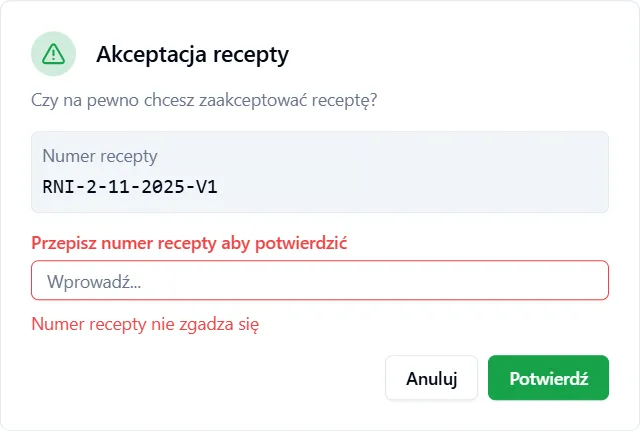
2. Accept - the “Prescription acceptance” dialog opens.
Add bag dialog
Section titled “Add bag dialog”After accepting the prescription, the add bag form will appear, where you need to fill in:
-
Bag type Required
- 3-in-1 - always available.
- 2-in-1 - available only for RNI prescriptions (neonatal individual) and only when the formulation contains ingredients administered by syringe. This creates a bag (
B) and a separate syringe (S).
-
Preparation date Required - the preparation date of the formulation
-
Number of validity days Required - how long the bag will be valid
-
Expiry date Auto - calculated automatically from the preparation date and number of validity days
-
Note Optional - additional information about the bag
-
Note on label Optional - text printed on the label (with a character limit); for a “2-in-1” bag a Note on label (syringe) is additionally available
-
Number of bags Required - the number of bags being prepared
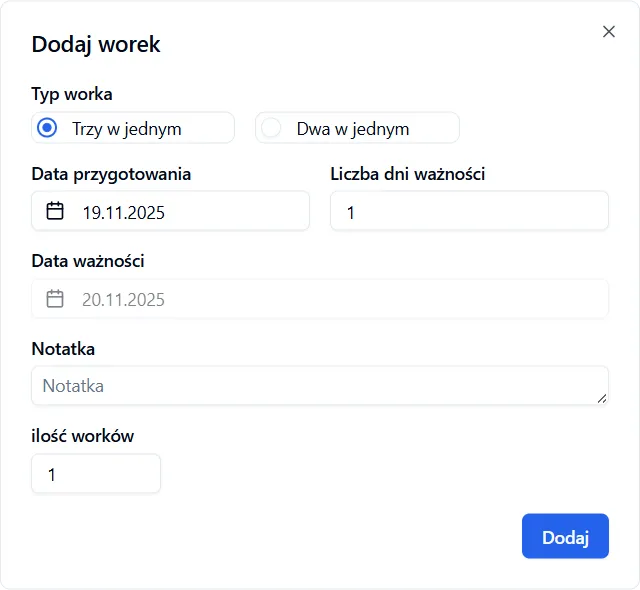
After filling in the form, click the “Add bag” button.
Printing service and printer selection dialog
Section titled “Printing service and printer selection dialog”After confirming the bag data, another dialog will appear for selecting:
- Printing service - selection of an available printing service
- Printer - selection of a printer that the chosen service has
After selecting a printer and confirming:
- The prescription changes to the status “Accepted”
- A bag is added in production
- The label and order are sent for printing
Subsequent access - Existing bags
Section titled “Subsequent access - Existing bags”When you enter the pharmacist view for a prescription that already has bags, the “Select bag” dialog will appear with a list of existing bags for that prescription.
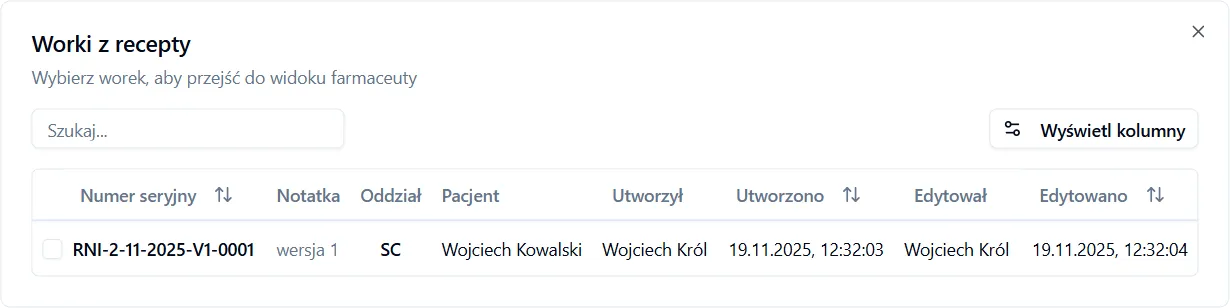
After selecting a bag you can:
- Review its details
- Make changes (if required)
- Click the “Add bag” button to add another bag (without re-accepting the prescription)
Frequently Asked Questions
Section titled “Frequently Asked Questions”What happens if I send a prescription back for correction?
After clicking “Needs correction” the prescription will change its status to “Needs correction” and return to the doctor who issued it. The doctor can then make the necessary corrections and resend it.
How many bags can I add for a single prescription?
You can add as many bags as needed. Each bag is printed and sent to production separately.
Do I have to select a printer immediately after adding a bag?
Yes - printing the labels and the order is a condition for accepting the prescription. You must select a printing service and a printer for the procedure to be completed. However, if an error occurs and no printers are available, it is enough to select only the printing service.