
Getting started
Section Purpose:
This documentation is meant to help new users get started with the system. It covers basic information about logging in, choosing your working context, and navigation.
Logging into the System
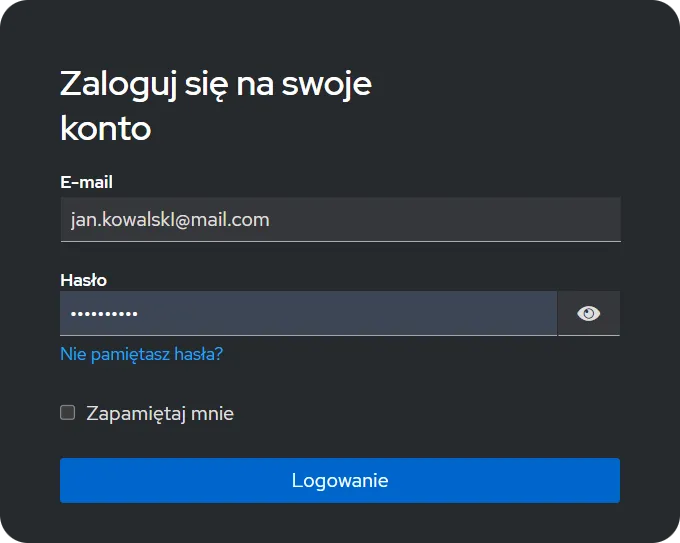
Section titled “Logging into the System”After launching the application, you will be redirected to the login page. Enter your credentials to gain access to the system. Accounts are created through a hospital invitation or by an administrator.
Welcome Page
Section titled “Welcome Page”After logging in, the welcome page is displayed with a “Welcome to the MyTotalMix application” card. It contains a disclaimer about responsible use of the application (a tool in the hands of a medical professional) along with quick-access buttons: Prescription list (if you have the prescription view permission) and Documentation.
Selecting a Department
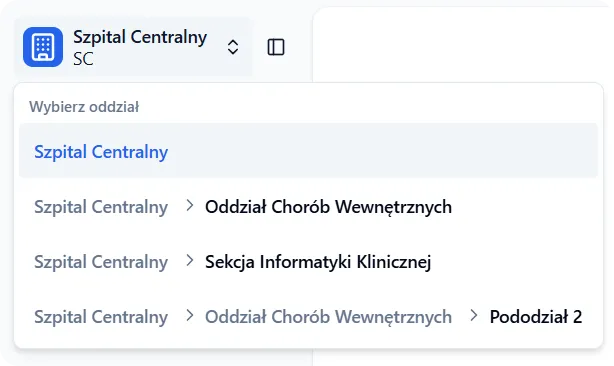
Section titled “Selecting a Department”The system operates in the context of a selected department. The department selector is located at the top of the side menu - click Select department and use the search box (“Search hospital or department…”) to indicate the correct unit.
“Departments” Filter (Scope)
Section titled ““Departments” Filter (Scope)”The prescription and bag lists are filtered by a shared department filter - the Departments button above the table. The filter displays a tree of hospitals and departments; selecting an entire hospital includes all of its departments. The filter is shared between both lists.
Navigation Menu
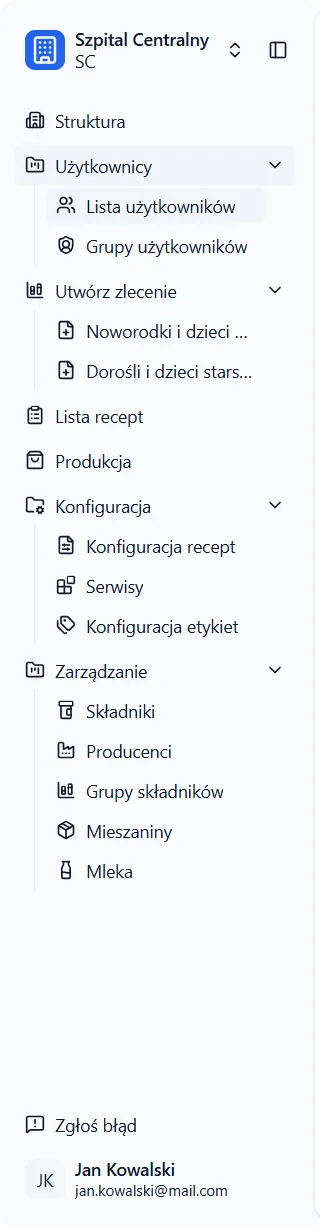
Section titled “Navigation Menu”The side menu contains the available application views. Their visibility depends on your permissions:
- Hospitals - hospitals, departments, members, and invitations.
- Create order - issuing prescriptions: Neonates and younger children, Adults and older children.
- Prescription list - prescription management.
- Production - bag list.
- Configuration - configuration of prescriptions, services, labels, permission groups, pharmacist limits, pharmacy, pharmacists, and service mode.
- Management - ingredients, manufacturers, ingredient groups, mixtures, templates, milks, delivery routes.
Menu Footer and Account
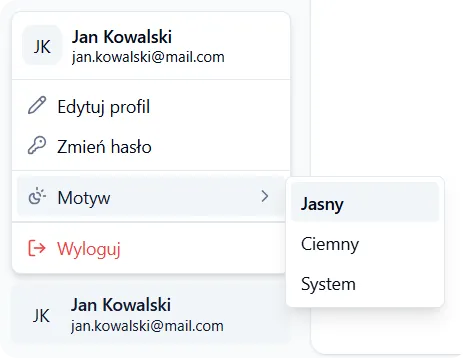
Section titled “Menu Footer and Account”At the bottom of the side menu you will find the Documentation and Report a bug shortcuts, pharmacy details, and the user account menu. Click the account icon to access settings or log out (Log out).
Interactive Guides
Section titled “Interactive Guides”Selected views (e.g., patient selection when issuing a prescription) have built-in step-by-step tutorials that walk you through the successive stages of work. They start in the context of a given view and help you quickly learn how it works.