
Permission groups
Section Purpose:
This documentation describes permission groups - how to create them, how to assign members to them, and how to grant them permissions from the system’s feature catalog.
Basic Information
Section titled “Basic Information”A permission group is a set of permissions granted simultaneously to many users. Instead of configuring each user individually, you assign them to a group - and they automatically receive all of its permissions.
You will find permission groups under Configuration → Permission groups. On the group list you can:
- Add a new group - provide a Group name and confirm.
- Edit the name of an existing group.
- Delete a group.
Group Management
Section titled “Group Management”The group management view contains two tabs:
Members
Section titled “Members”On this tab you add and remove users assigned to the group.
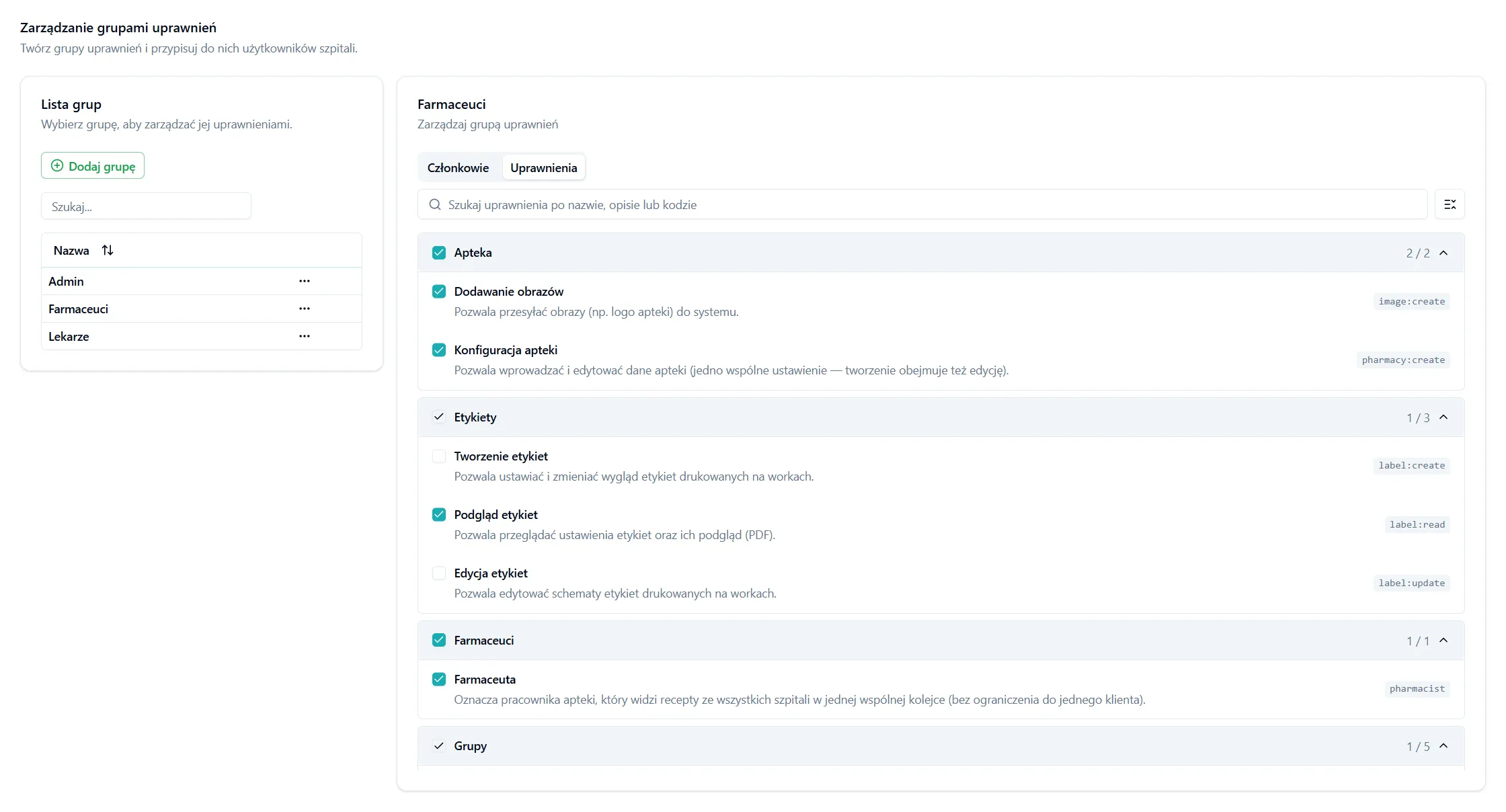
Permissions
Section titled “Permissions”The Permissions tab is a catalog of all system permissions. Each permission is a separate checkbox with its own name and description - you select exactly the ones the group should receive.
View in Application
Section titled “View in Application”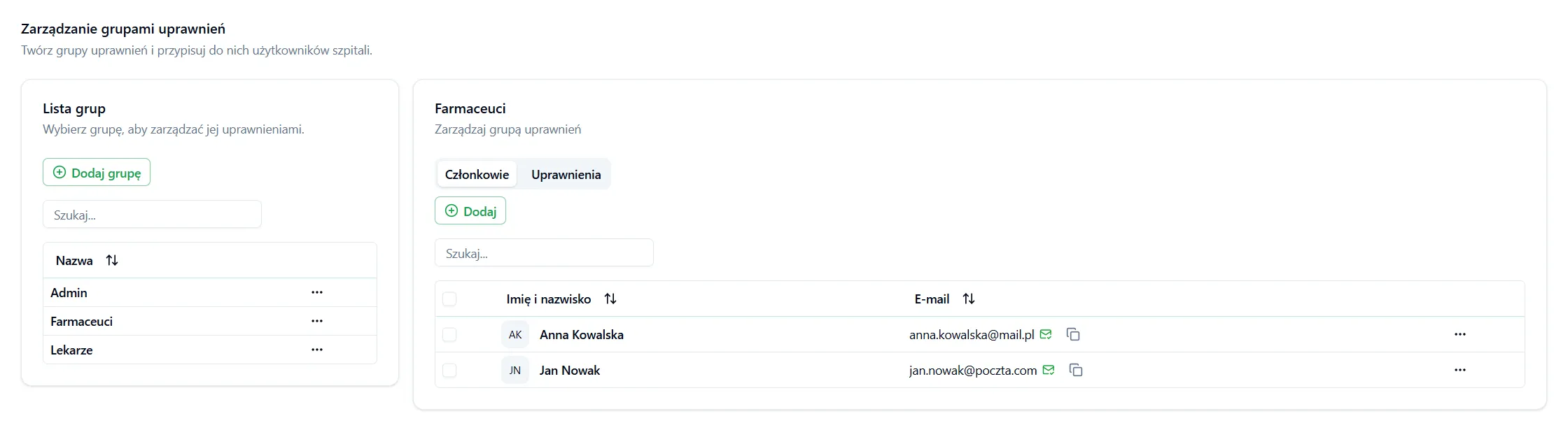
Permission Catalog
Section titled “Permission Catalog”Permissions are grouped into the following categories:
| Category | Scope |
|---|---|
| Pharmacists | The pharmacist role that sees prescriptions from all hospitals (see below). |
| Bags | Creating bags (per prescription type), viewing, changing status. |
| Delivery Routes | Creating, viewing, and editing/archiving delivery routes. |
| Groups | Create, view, edit, and delete permission groups; Superadmin. |
| ICD-10 Codes | Searching ICD-10 disease codes. |
| Ingredients | Creating, viewing, editing, and archiving ingredients and their groups. |
| Labels | Creating, viewing, and editing label schemes. |
| Manufacturers | Creating, viewing, editing, and archiving manufacturers. |
| Milks | Creating, viewing, editing, and archiving milks. |
| Mixtures | Creating, viewing, editing, and archiving mixtures. |
| Patients | Registering, searching, editing, and archiving patients. |
| Pharmacist Limits | Configuring the pharmacist’s dosage limits. |
| Pharmacy | Configuring pharmacy data and uploading images (e.g. logo). |
| Prescriptions | Creating (per type), viewing, editing, schemes, reverting status, unlocking. |
| Services | Creating, viewing, editing, and archiving services and printers. |
| Templates | Creating, viewing, editing, and archiving templates and their variants. |
| Tenants | Creating, viewing, editing, and archiving hospitals, departments, and invitations. |
| Users | Creating accounts (including pharmacists), viewing, editing, and deactivating. |
Important Information
Section titled “Important Information”- Permission changes affect all members - modifying a group immediately affects all assigned users.
- A user can belong to several groups - their permissions are the sum of all groups.
- Principle of least privilege - grant only the permissions that are actually needed for the role being performed.
Frequently Asked Questions
Section titled “Frequently Asked Questions”Can I set permissions for a single user?
No - permissions are always granted at the group level. For a user to have permissions, they must belong to at least one group.
Are group permission changes immediate?
Yes - changes take effect immediately for all members of the group.
What happens after a group is deleted?
Members are automatically detached from the group and lose the permissions that came from it. If they have permissions from other groups, those remain active.
Tip: Regularly review permission groups so their scope matches employees’ actual roles. Stick to the principle of least required privilege.